¶ Signing In and Finding Your Way Around the SCTP MIS
¶ Overview
This guide teaches you how to sign in to the Social Cash Transfer Programme Management Information System (SCTP MIS), understand the screen that appears after you sign in, find your way around the main menus, look after your own account details, and sign out safely.
Every other process in this manual begins from the screens introduced here. Work through this page first, even if you only intend to use one part of the system.
¶ Purpose
The SCTP MIS holds beneficiary and payment information for the Social Cash Transfer Programme. Access is controlled so that each member of staff sees only the parts of the system their job requires, and only the districts they are responsible for.
Signing in tells the system who you are. From that point onwards the system decides which menus appear, which buttons you can use, and whose records you are allowed to see. Understanding this from the start explains why your screen may look different from a colleague's.
¶ Who Can Perform This Process
Anyone who has been issued with an SCTP MIS user account.
Your account carries:
- A role — for example an administrator, an approver, an editor or a viewer. Your role decides which menus and buttons you see.
- An access level — either National or District. National users see records for every district. District users see only the district assigned to their account.
You cannot change your own role or access level. Only a system administrator can do that.
¶ Before You Begin
Make sure you have the following ready:
- The web address of the SCTP MIS, supplied by your system administrator. https://target.ministryofgender-socialcashtransfer.com/
- Your username. This is not your email address.
- Your password.
- An internet connection and a modern web browser.
- Access to the email inbox registered against your account, in case you need to reset your password.
If you have not yet been given an account, contact your system administrator/ the Ministry IT team. Accounts are created for you — see Managing System Users in the Administration section.
¶ Navigation
To sign in:
Open your web browser
→ Enter the SCTP MIS web address
→ The Login page opens
After signing in, the main menus appear across the top of every page:
Administration
Targeting & Enrollment
Shock Response
Transfers
Case Management
Complementarity
M&E
¶ Step-by-Step Guide
¶ Part 1 — Signing in
-
Open your web browser and type the SCTP MIS web address given to you by your system administrator, then press Enter.
-
The Login page opens. Confirm that the heading reads MALAWI - SOCIAL CASH TRANSFER PROGRAMME and that you can see the Mtukula Pakhomo logo on the left of the login box.
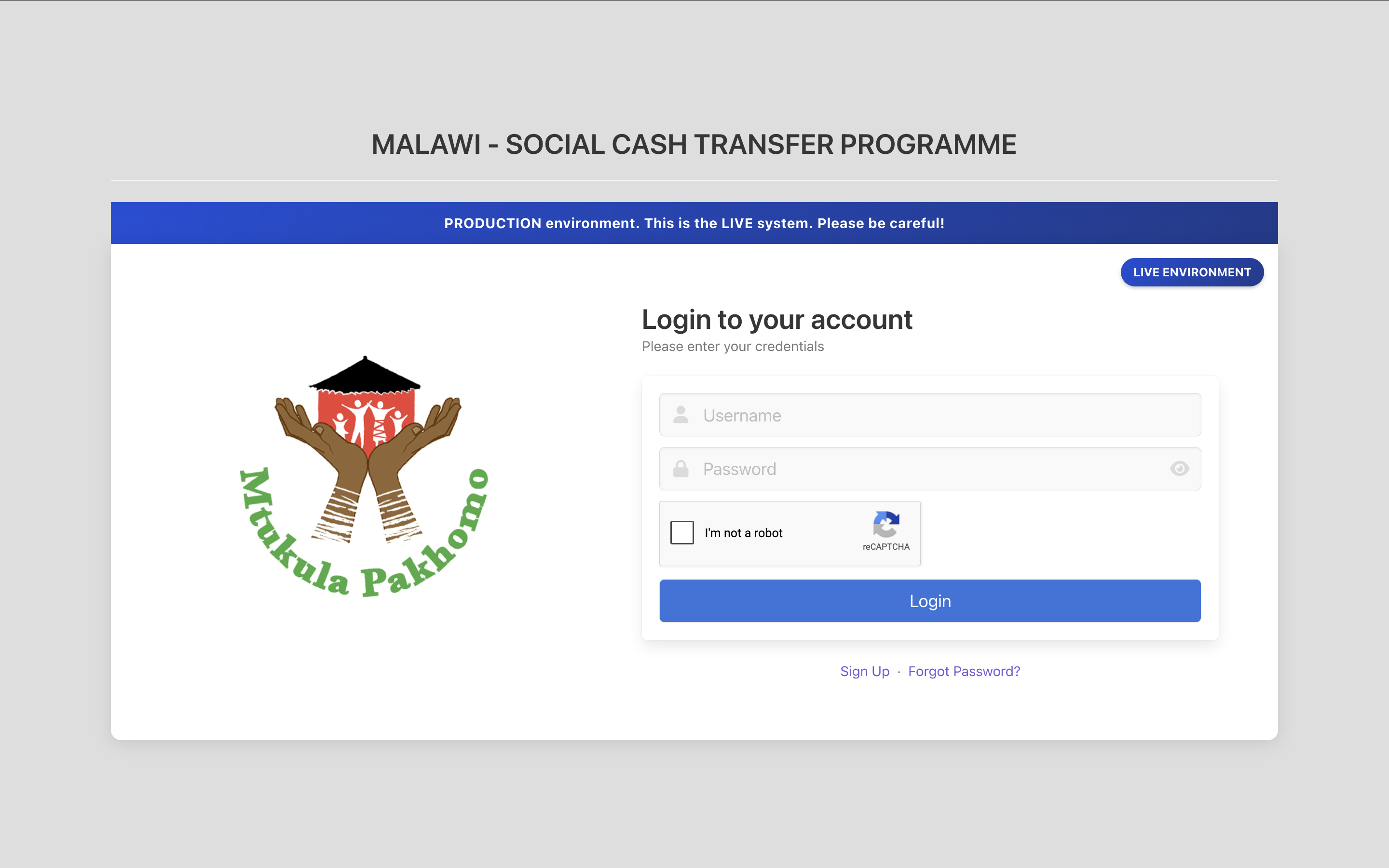
Screenshot: Full Login page showing the programme heading, logo and login box.
-
Look at the coloured banner near the top of the page. This tells you which copy of the system you have opened.
- LIVE ENVIRONMENT means you are working with real programme data. Take care — everything you do here is real.
- TEST ENVIRONMENT, DEV / DEMO ENVIRONMENT, MIGRATION TEST ENVIRONMENT or VERSION 4 ENVIRONMENT means you are in a practice or testing copy. Work done here does not affect real beneficiaries.
Always check this banner before you start work. Entering real payment information into a test system, or practising in the live system, causes serious problems.

Screenshot: Environment banner at the top of the Login page.
-
Click inside the Username box and type your username exactly as it was given to you.
Your username is not your email address. It is between 3 and 20 characters long, contains only letters and numbers, and starts with a letter.

Screenshot: Username field with the person icon on the left.
-
Click inside the Password box and type your password.
The characters appear as dots so that nobody can read them over your shoulder.
-
If you want to check what you have typed, click the eye icon on the right of the Password box. The password becomes readable. Click the icon again to hide it.
Only do this when nobody else can see your screen.

Screenshot: Password field with the eye icon highlighted.
-
Complete the reCAPTCHA box below the password field by ticking I'm not a robot, and answering the picture challenge if one appears.
This step proves that a person, and not an automated program, is signing in. It protects the system from attacks that try thousands of passwords in a row.

Screenshot: reCAPTCHA box on the login form.
-
Click the blue Login button.
-
Wait a moment while the system checks your details.
- If your details are correct, the home page opens.
- If you are a Payment Service Provider (PSP) user, you are taken instead to the PSP Portal, which has its own menu. See section 8 of this manual.
- If something is wrong, a red message appears at the top of the login box. Read it carefully and follow the guidance in Common Errors below.
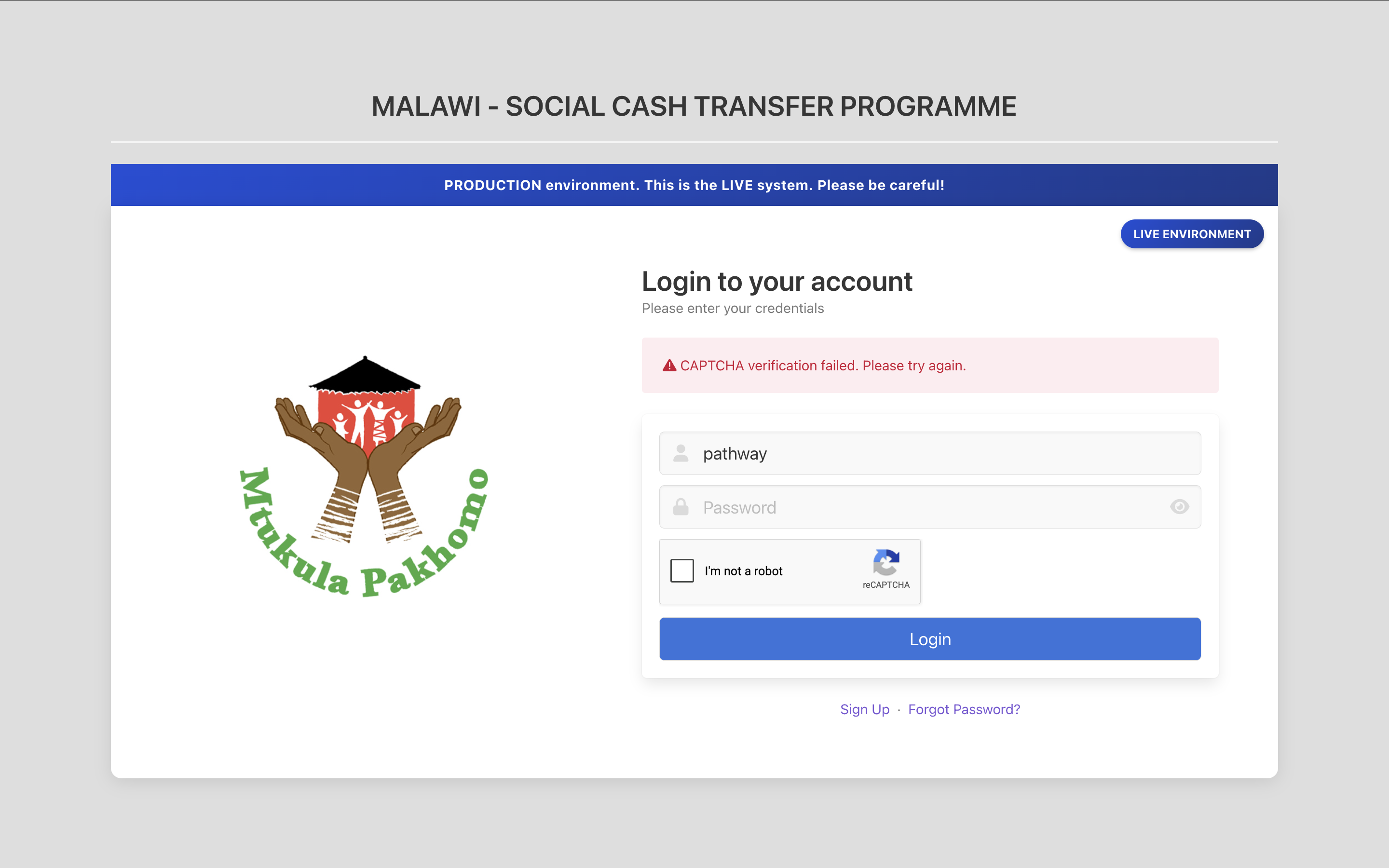
Screenshot: Login page showing a red error message.
¶ Part 2 — Understanding the home page
-
Once you have signed in, the home page opens. Look for the greeting near the top of the page: Hello, followed by your first name.
This confirms the system has recognised you.
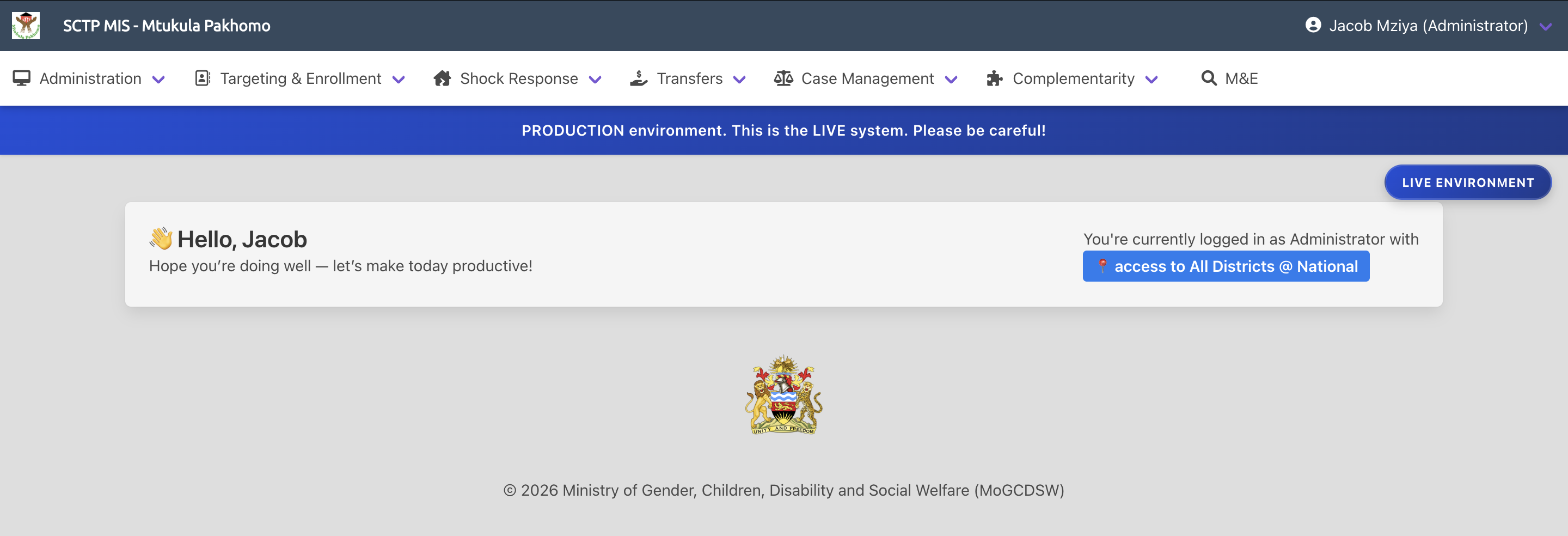
Screenshot: Home page welcome banner showing the greeting.
-
Look at the right side of the same banner. It tells you two important things:
- The role you are logged in as — for example Administrator or District Editor.
- The districts you can see — either a named district, or All Districts if you are a national user.
Check this every time you sign in. If the role or district is not what you expect, stop and contact your system administrator before entering any data.
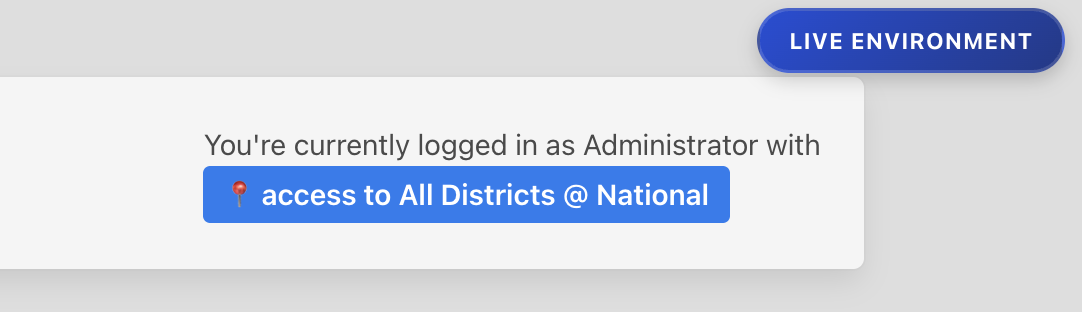Screenshot: Role and district access tags on the home page banner.
-
If you see an orange warning reading Your account is configured as District user but has no district assigned. Contact admin, do not continue.
Your account is set to district level but no district has been linked to it, so the system cannot show you any records. Contact your system administrator to have a district assigned.
¶ Part 3 — Finding your way around the menus
-
Look at the top bar of the screen. On the left is the Mtukula Pakhomo logo and the title SCTP MIS - Mtukula Pakhomo. Clicking either of these returns you to the home page from anywhere in the system.
Screenshot: Top bar showing the logo and system title.
-
Look at the right side of the top bar. It shows your full name followed by your role in brackets. This is your profile menu.
Screenshot Placeholder: Profile menu in the top right corner showing name and role.
-
Look at the second bar, directly beneath the top bar. This is the main menu. It contains the areas of work in the system:
Menu What it is used for Administration Setting up users, roles, locations, programmes, schools, transfer parameters, top-ups and payment service providers Targeting & Enrollment Importing household data, verifying eligibility, community based targeting, enrolling households, passbooks and account numbers Shock Response Registering, evaluating and enrolling beneficiaries during a shock response Transfers Running the payment cycle from opening a transfer period through to reconciliation Case Management Household updates, suspensions, exits, replacements, claims and complaints Complementarity Sharing beneficiary data with complementary programme partners M&E Monitoring and evaluation dashboards and reports Screenshot: Main menu bar showing all available menus.
-
Hover your mouse over a menu name, for example Transfers. A list of options drops down beneath it.
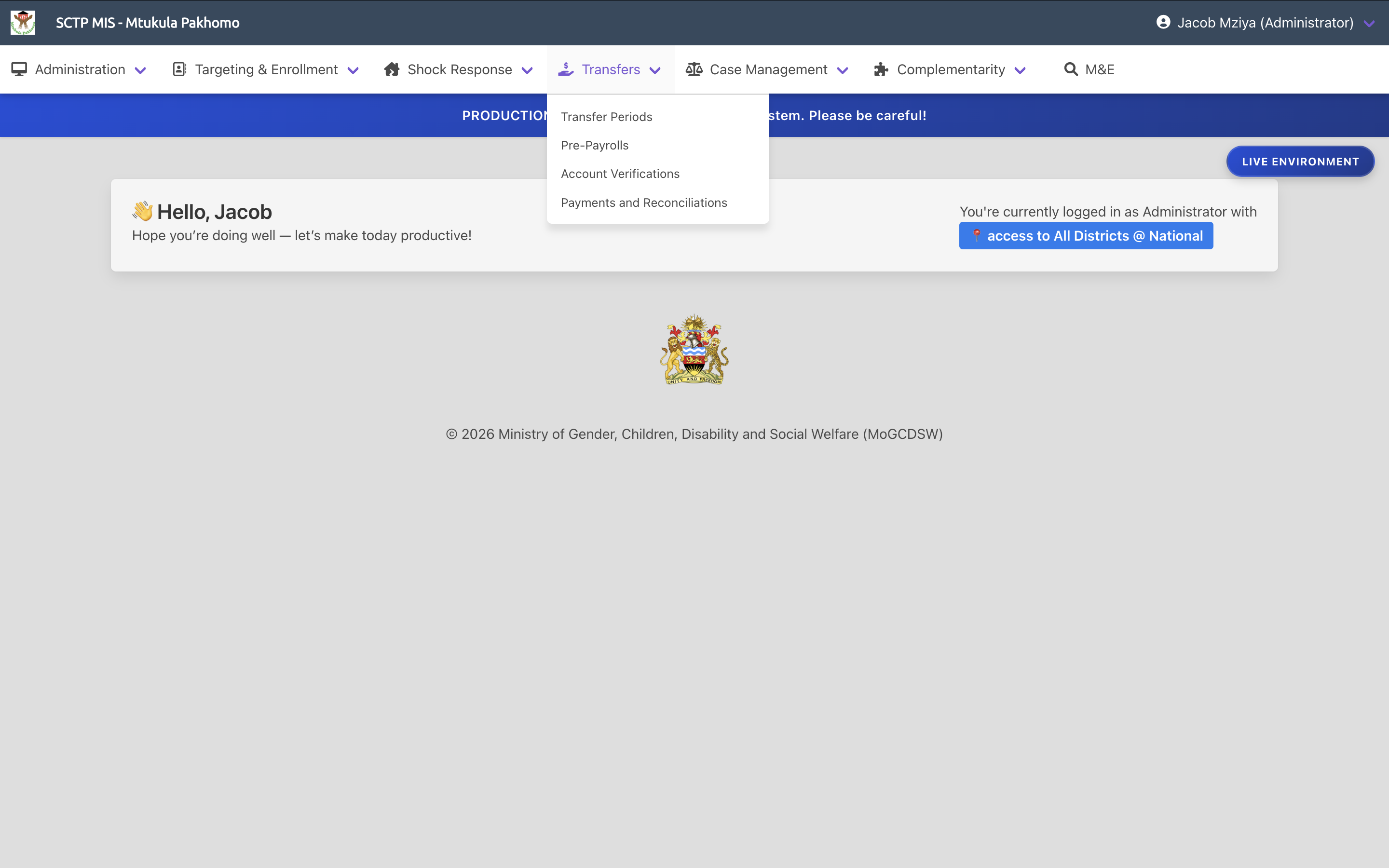Screenshot: Transfers menu expanded showing its options.
-
Click the option you need. The page opens and the menu closes.
-
Some options have a small arrow (›) on their right. This means there is a further list inside. Hover over the option to open the second list, then click the item you want.
For example, Administration › Transfers › Transfer Parameters.
Screenshot Placeholder: Administration menu with a nested submenu expanded.
-
If a menu or an option you expect is missing, it is because your role does not include permission for it. This is normal and not a fault. If you need access, ask your system administrator to review your role.
-
On smaller screens the menu bar collapses. Click the three horizontal lines near the top left to open the menus.
Screenshot Placeholder: Collapsed menu icon on a narrow screen.
¶ Part 4 — Updating your own account details
-
Hover over your name in the top right corner to open the profile menu.
-
Click Settings.
Screenshot Placeholder: Profile menu open showing Settings, Password and Logout.
-
The Settings page opens. Your Username is shown but cannot be changed — it is greyed out. Only an administrator can change a username.
-
Update your E-mail address, First Name or Last Name as needed.
Keep your email address up to date. It is the address the system uses to send you password reset links, so an out-of-date address will lock you out.
Screenshot Placeholder: Settings page with the username locked and the editable fields.
-
Click Save Information.
-
Confirm that a green message appears telling you the details were saved. If a red message appears instead, read it and correct the field it refers to.
¶ Part 5 — Changing your password
-
Hover over your name in the top right corner and click Password.
-
The Password page opens.
Screenshot Placeholder: Change Password page showing both password fields.
-
In Current Password, type the password you use now.
The system asks for this to confirm it is really you making the change, in case you have left your screen unattended.
-
In New Password, type the password you want to use from now on.
It must be between 8 and 15 characters, and must be different from your current password.
-
Click Update Password.
-
Confirm that the green message Password successfully updated! appears.
Your new password takes effect immediately. You do not need to sign in again, but you will need the new password next time you do.
Screenshot Placeholder: Confirmation message after a successful password change.
¶ Part 6 — Resetting a forgotten password
-
On the Login page, click Forgot Password? beneath the Login button.
Screenshot Placeholder: Sign Up and Forgot Password links below the login form.
-
The Reset page opens. Type your Username in the box provided.
-
Look at the Captcha image on the page and type the five characters you see into the box beneath it.
If the characters are unclear, click the image to load a new one.
Screenshot Placeholder: Password reset form showing the username field and captcha image.
-
Click Reset.
-
A confirmation page appears telling you that a reset link has been sent to the email address held on your account.
For security, this same confirmation appears whether or not the username exists. It does not confirm that your username was correct.
-
Open the inbox for the email address registered against your account and find the message titled SCTP MIS: Account Password Reset Request.
-
Click the reset link in that email. A page opens where you can set a new password.
-
Type your new password, complete the captcha, and submit the form.
-
Confirm that the message Password changed successfully appears.
Setting a new password this way also unlocks an account that was locked by repeated failed sign-in attempts.
-
Return to the Login page and sign in with your new password.
¶ Part 7 — Signing out
-
When you have finished working, hover over your name in the top right corner.
-
Click Logout.
-
You are returned to the Login page with the message You have been successfully logged out.
Always sign out before leaving your computer, especially on a shared machine. Anyone who reaches your screen while you are still signed in can act as you, and the audit log will record their actions under your name.
Screenshot Placeholder: Login page showing the successful logout message.
-
If you leave the system idle for too long, it signs you out by itself and returns you to the Login page. Any work you had not saved is lost, so save your work before stepping away.
¶ Required Information
¶ Login page
| Field | Description | Required |
|---|---|---|
| Username | The username issued to you by the administrator. Between 3 and 20 characters, letters and numbers only, starting with a letter | Yes |
| Password | Your account password. Between 8 and 15 characters | Yes |
| reCAPTCHA | Confirms that a person and not an automated program is signing in | Yes |
¶ Settings page
| Field | Description | Required |
|---|---|---|
| Username | Your sign-in name. Displayed for reference only and cannot be edited | Not editable |
| E-mail address | Where the system sends password reset links and notifications. Must be a valid address, between 3 and 100 characters, and not already used by another account | Yes |
| First Name | Your first name as it should appear on screen and in the audit log. Between 1 and 50 characters | Yes |
| Last Name | Your surname as it should appear on screen and in the audit log. Between 1 and 50 characters | Yes |
¶ Password page
| Field | Description | Required |
|---|---|---|
| Current Password | The password you use now. Confirms your identity before the change is made | Yes |
| New Password | The password you wish to use from now on. Between 8 and 15 characters, and different from your current password | Yes |
¶ Reset page
| Field | Description | Required |
|---|---|---|
| Username | The username of the account whose password should be reset | Yes |
| Captcha | The five characters shown in the image on screen | Yes |
¶ Validation Rules
Username
- Required. The message Username is required. appears if left blank.
- Must be between 3 and 20 characters. The message reads Username must have 3 to 20 characters.
- Must contain only letters and numbers, and must begin with a letter. The message reads Username must be alphanumeric and start with a letter.
Password
- Required. The message Password is required. appears if left blank.
- Must be between 8 and 15 characters. The message reads Password must have 8 to 15 characters.
Sign-in security
- The reCAPTCHA must be completed. If it is not, the system responds CAPTCHA verification failed. Please try again.
- Your account is locked after three consecutive failed sign-in attempts. The number of attempts allowed is set by your system administrator and can be between one and five.
- A successful sign-in resets the count of failed attempts to zero.
Changing your password
- The new password must be different from the current one. Otherwise the system responds New password must be different from old password.
- The current password must be correct. Otherwise the system responds Invalid password entered.
Account settings
- The email address must be in a valid format. Otherwise the system responds Invalid email address format.
- The email address must not already belong to another account. Otherwise the system responds The email address that you entered is already in use.
- First name and last name cannot be left blank.
Password reset
- The captcha characters must match the image shown.
- The reset link in the email works only once and expires. An expired or already-used link produces Invalid or expired reset link.
¶ What Happens Next
When you sign in successfully
- The system records your sign-in, including the time and the network address you connected from.
- Your count of failed sign-in attempts is reset to zero.
- The menus are rebuilt to show only the areas your role permits.
- Your access level is applied, so district users see only their own district's records from that point onwards.
- Payment Service Provider users are taken to the PSP Portal instead of the standard home page.
When a sign-in fails
- The attempt is recorded, including the network address it came from.
- The failed attempt count on your account increases by one.
- Once the limit is reached the account is locked and the reason is recorded against it.
When you change your password
- The new password takes effect immediately.
- Your failed attempt count is reset to zero.
When you reset a forgotten password
- An email titled SCTP MIS: Account Password Reset Request is sent to the address on your account.
- After you set the new password, a second email titled SCTP MIS: Password Updated confirms the change, showing the time and the network address used.
- A locked account is unlocked.
When you sign out
- Your session ends immediately and the menus can no longer be reached without signing in again.
¶ Common Errors
| Message or situation | What it means and what to do |
|---|---|
| Invalid username or password | The username or password is wrong. Check for typing errors and make sure Caps Lock is off. Remember that your username is not your email address. Take care — three failed attempts lock the account |
| This account has been locked. Please reset your password to unlock | Too many failed sign-in attempts. Use Forgot Password? to set a new password, which unlocks the account. An administrator can also unlock it for you |
| This account has been disabled | Your account has been deactivated. Contact your system administrator |
| This account is prohibited from logging in | The role attached to your account has been deactivated. Contact your system administrator |
| CAPTCHA verification failed. Please try again. | The reCAPTCHA was not completed, or it timed out while you were typing. Complete it again and sign in promptly afterwards |
| Username must be alphanumeric and start with a letter. | You have typed an email address or included a symbol. Enter the username exactly as issued to you |
| Password must have 8 to 15 characters. | The password you typed is too short or too long. Check for a missing character or an accidental space |
| Invalid password entered. | On the Password page, the current password you typed is wrong. Type it again carefully |
| New password must be different from old password. | You have entered the same password twice. Choose a genuinely new one |
| The email address that you entered is already in use. | Another account already uses that address. Use a different address, or ask your administrator to check the duplicate account |
| Invalid or expired reset link. | The reset link has already been used or is too old. Request a new one from Forgot Password? |
| Session expired. Please try again | Too much time passed between opening the reset link and submitting the form. Request a new reset link |
| Reset email never arrives | The email address on your account may be wrong or out of date. Check your junk mail folder first, then contact your system administrator |
| A menu you need is missing | Your role does not include that permission. Ask your system administrator to review your role |
| Records for other districts are not visible | Your account is set to district level. This is expected. National-level access must be granted by an administrator |
| The page returns to Login by itself | The system signed you out after a period of inactivity. Sign in again and continue |
¶ Tips
- Check the environment banner every time. Confirm you are in the live system before doing real work, and in a test system before practising.
- Confirm your role and district in the home page banner at the start of each session. It takes two seconds and prevents work being done in the wrong place.
- Type carefully after two failed attempts. The third failure locks your account and you will need to reset your password to get back in.
- Keep your email address current on the Settings page. It is the only way to recover a forgotten password without an administrator.
- Never share your username and password. Everything done in the system is recorded against the account that did it, so sharing an account means the audit log will point to you.
- Use the logo or system title in the top left to get back to the home page whenever you feel lost.
- Save your work before stepping away. The system signs you out after a period of inactivity and unsaved work is lost.
- Sign out rather than just closing the browser, particularly on a shared computer.
- The Sign Up link on the login page creates a self-registered account only. It has no permissions until an administrator assigns a role, so it is not the normal way to get access. Ask your administrator to create your account instead.
¶ Related Processes
Now that you can sign in and move around the system, continue with the process that matches your role:
- Administrators — start with Managing System Users and Managing User Roles and Permissions in the Administration section, so that colleagues can be given the right access.
- Programme setup staff — start with Setting Up Geolocation Areas, then Setting Up Programmes.
- Targeting and enrolment staff — start with Importing Household Data from Source Systems.
- Transfers staff — start with Opening and Managing a Transfer Period.
- Case management staff — start with Recording Household Data Updates.
- Payment Service Provider staff — go to section 8, PSP Portal.